Every widget in the Content Studio, and when to use which
Seventeen widget types, grouped into Content, Media and Practice. What each one does, the format it expects, and the mistake people make with it.
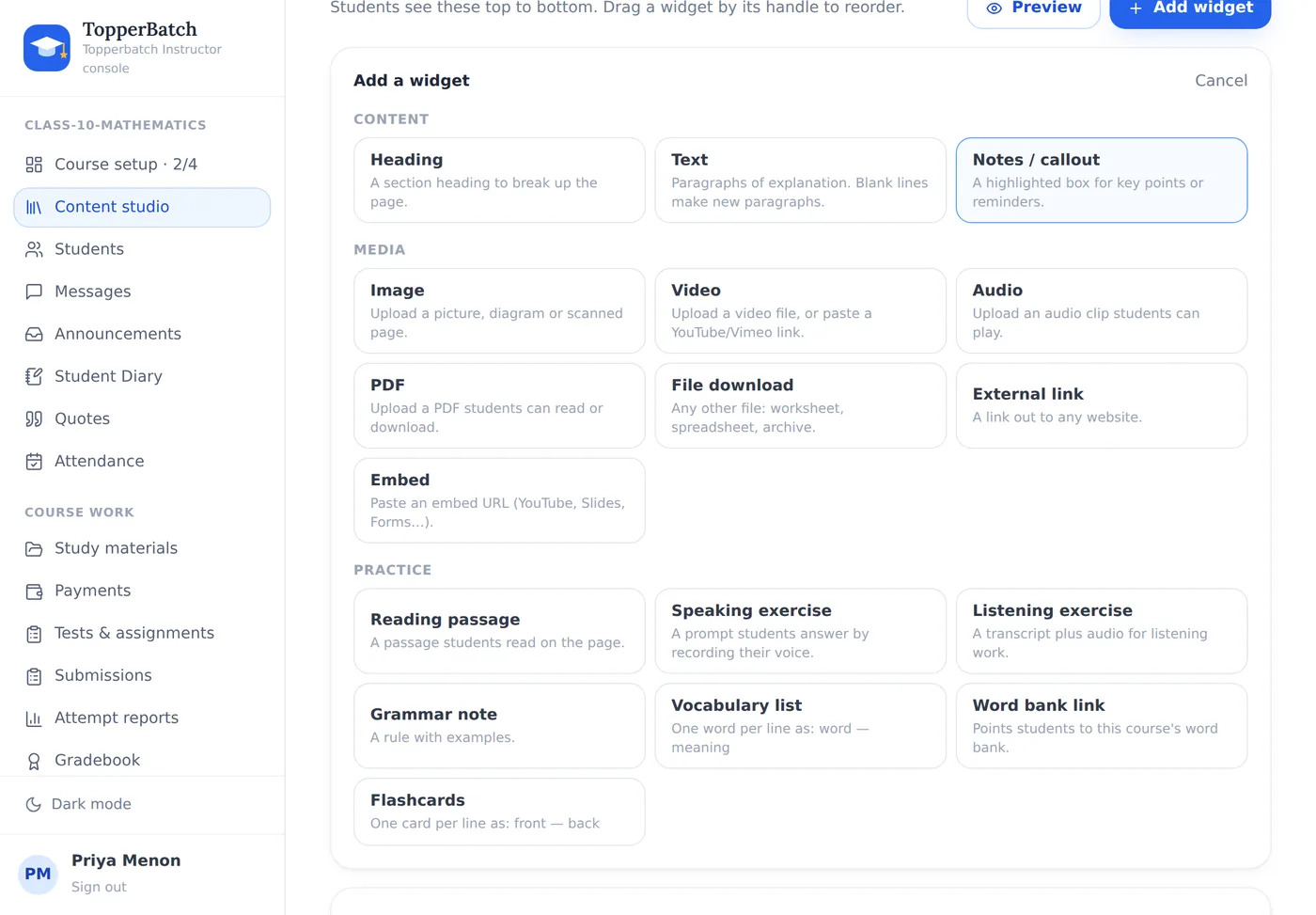
A section in TopperBatch is a page you build out of widgets. Students read them top to bottom. This is the full list.
Content
Heading — breaks a long page into parts. Use one every three or four widgets; a page of undifferentiated text is a page nobody scrolls.
Text — the workhorse. Title plus body. Leave a blank line between paragraphs and they render as paragraphs. The most common mistake is pasting an entire chapter into one Text widget; split it at the natural boundaries and students can find their place again after a break.
Notes / callout — a highlighted box. Reserve it for the two or three things students must not miss. If everything is highlighted, nothing is.
Media
Image — diagrams, scanned worked examples, photographs of a whiteboard. Add a caption in the body field; an unlabelled diagram is a puzzle.
Video — upload a file, or paste a YouTube or Vimeo link. An uploaded file plays inline with normal controls.
Audio — a clip students play on the page. Useful well beyond language teaching: a spoken walkthrough of a hard proof is often clearer than another page of notes.
PDF — opens in the browser and downloads. This is where lecture slides belong.
File download — anything else: a worksheet, a spreadsheet, a dataset, a starter project.
External link — a link out, with a title and a line of context. Say why you are sending them there.
Embed — an embed URL for a YouTube video, a slide deck, a form, a simulation.
Practice
Reading passage — a passage students read on the page.
Speaking exercise — a prompt students answer by recording their voice.
Listening exercise — a transcript plus audio.
Grammar note — a rule with examples.
Vocabulary list — one per line, as word — meaning.
Flashcards — one card per line, as front — back.
Word bank link — points students at the course's word bank.
The two things worth knowing
Everything is editable, afterwards
Every field of every widget can be changed later — including the link and the attached file.
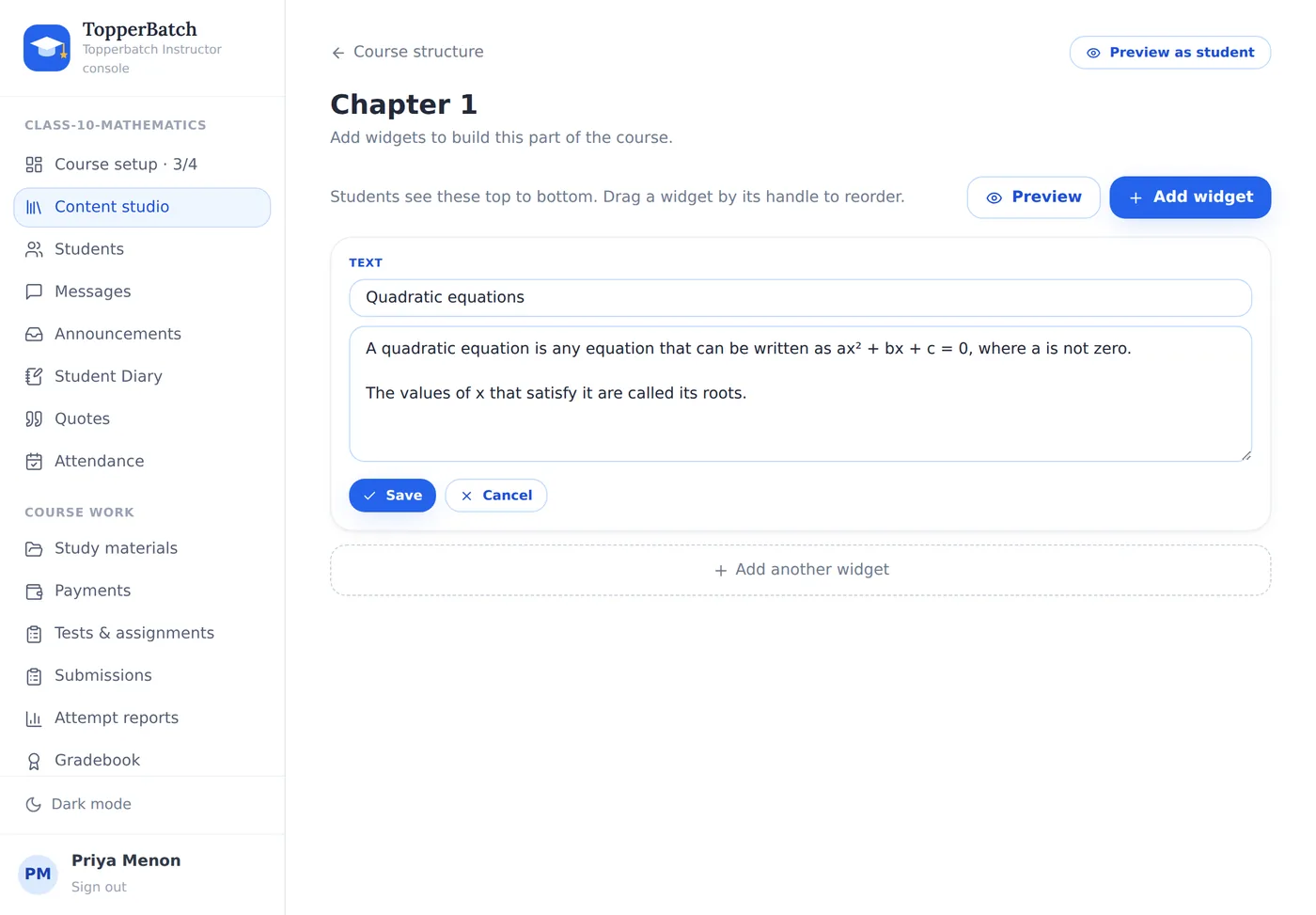
Tick Remove this file to detach it, or choose a new file to replace it. You never need to delete a widget to correct a typo. (You used to. That was a real limitation and it is gone.)
Build one, then duplicate
If every chapter of your course has the same five widgets — objectives, notes, worked example, PDF, practice — build the first one properly and use the copy icon on the section. The duplicate arrives hidden, so students never see it half-edited.
Run your class the way you want to
Materials, assignments, attendance, grades and fees in one place, under your own brand.
Create your classroomKeep reading
How to run a coaching class without drowning in paperwork
Attendance registers, fee diaries, WhatsApp groups and photocopied worksheets. Here is how small institutes replace all of it with one system, without losing the personal touch.
Why your class needs its own space, not another WhatsApp group
Group chats are wonderful for conversation and terrible for coursework. A look at what breaks as your batch grows, and what to do instead.